


Alternatives to Google Translate for YouTube Videos: A Step-by-Step Guide
Have you ever watched a YouTube video in a language you don't understand and wondered if Google Translate could help? While it can't directly translate audio from videos, it can be used alongside YouTube's built-in subtitling tools to help transcribe and translate text, making videos more accessible.
This article will guide you through using Google Translate for YouTube video translation. We'll also explore automatic translation options and advanced tools like AI video translators that can streamline the entire process.
How To Use Google Translate For YouTube Videos
Using Google Translate for video translation involves two key steps: transcribing the video using YouTube Studio and then translating the text with Google Translate.
Step 1: Transcribe The YouTube Video In YouTube Studio
First, you need to obtain the transcript of your video. Here's how:
- Access YouTube Studio: Go to YouTube Studio and log in with your Google account.
- Select the Video: Click on "Content" in the left-hand menu, find the video you want to translate, and click the "Details" icon for that video.
- Generate Automatic Captions: Navigate to the "Subtitles" tab. You will find the "Automatic Captions" option. Click "Duplicate and Edit" to open the captions in text format.
- Copy the Transcript: Once the captions are displayed, you can review them for any errors. Then, copy the entire text transcript for translation.
Step 2: Translate The Captions With Google Translate
Now, use Google Translate to convert the text into your desired language.
- Go to Google Translate: Visit the Google Translate website.
- Paste the Transcript: Paste the copied transcript into the left-hand text box. The tool will automatically detect the source language.
- Select the Target Language: Choose the language you want the subtitles translated into from the right-hand side menu.
- Copy the Translated Text: Once the translation is complete, copy the translated text.
- Manually Add Translated Subtitles: Return to YouTube Studio. In the "Subtitles" section for your video, select "Add Language," choose your target language, and click "Add." Paste your translated text into the editor, manually syncing it with the video timeline.
Key Caveats Of The Manual Google Translate Method
While Google Translate can be cost-effective, it remains a time-consuming and tedious process, especially for creators with multiple videos. Its accuracy is also often lacking for idioms, slang, or technical terms.
How To Translate YouTube Videos Automatically
If the manual Google Translate method seems too labor-intensive, YouTube offers a built-in feature for automatic subtitle translation.
Use YouTube’s Automatic Translation Feature
- Publish Original Language Captions: To use auto-translate, you must first publish the original language captions. This feature is not available for auto-generated captions alone.
- Enable Translation: Go to the "Subtitles" tab in YouTube Studio, click "Add Language," and select your desired target language (e.g., Spanish, French).
- Activate Auto-Translation: Click the "Automatic Translation" button under the new language tab. Review the generated subtitles for errors, make necessary adjustments, and publish them.
This method is faster but not flawless. The translation quality heavily depends on the accuracy of the original source captions.
Limitations of Google Translate and YouTube's Automatic Translation
- Accuracy Issues: Machine translations often provide literal, word-for-word conversions that can sound unnatural or awkward. They may misunderstand context, leading to confusing errors for viewers.
- Text-Only Translation: Both YouTube and Google Translate are limited to subtitle text. They cannot translate spoken audio directly, nor can they translate any on-screen text or graphics burned into the video content.
- Lack of Context: Machine translators struggle with nuance, cultural references, and intended meaning. This often results in translations that feel disconnected from the original message.
How To Use An AI Video Translator For YouTube Translation
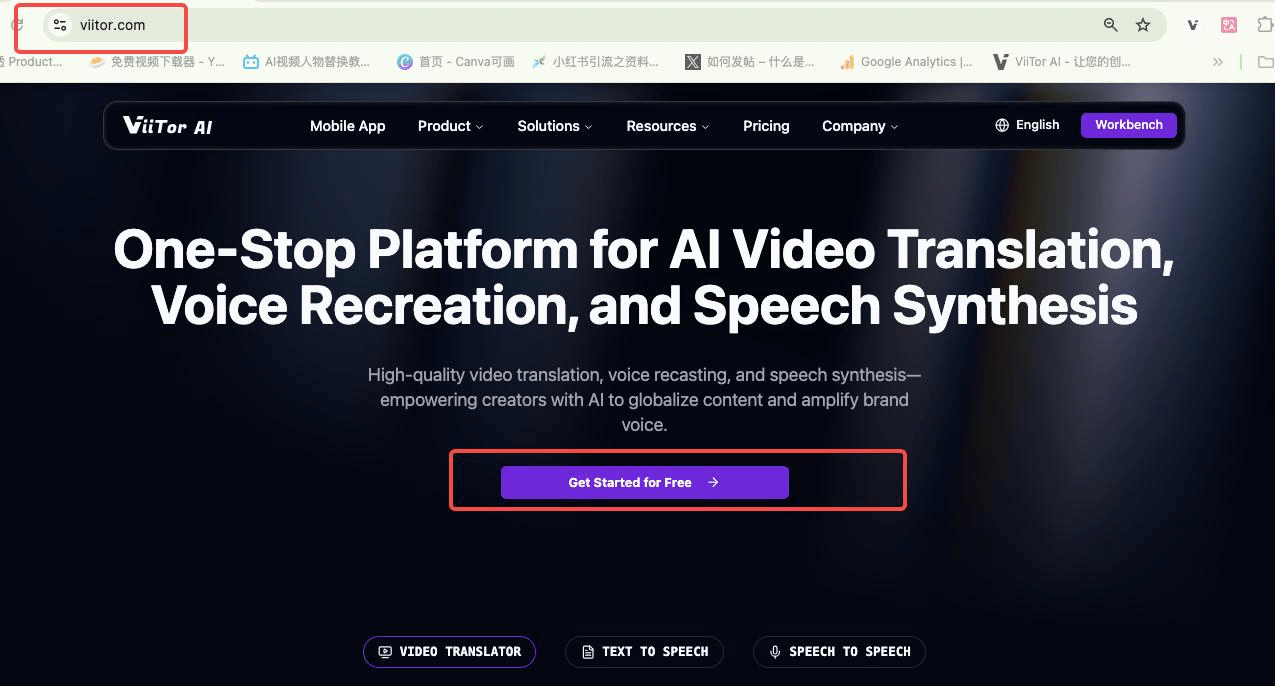
For a faster and more seamless experience, consider using a third-party AI tool like ViiTor AI. These platforms can instantly translate, transcribe, and even dub your videos—capabilities beyond YouTube's native tools.
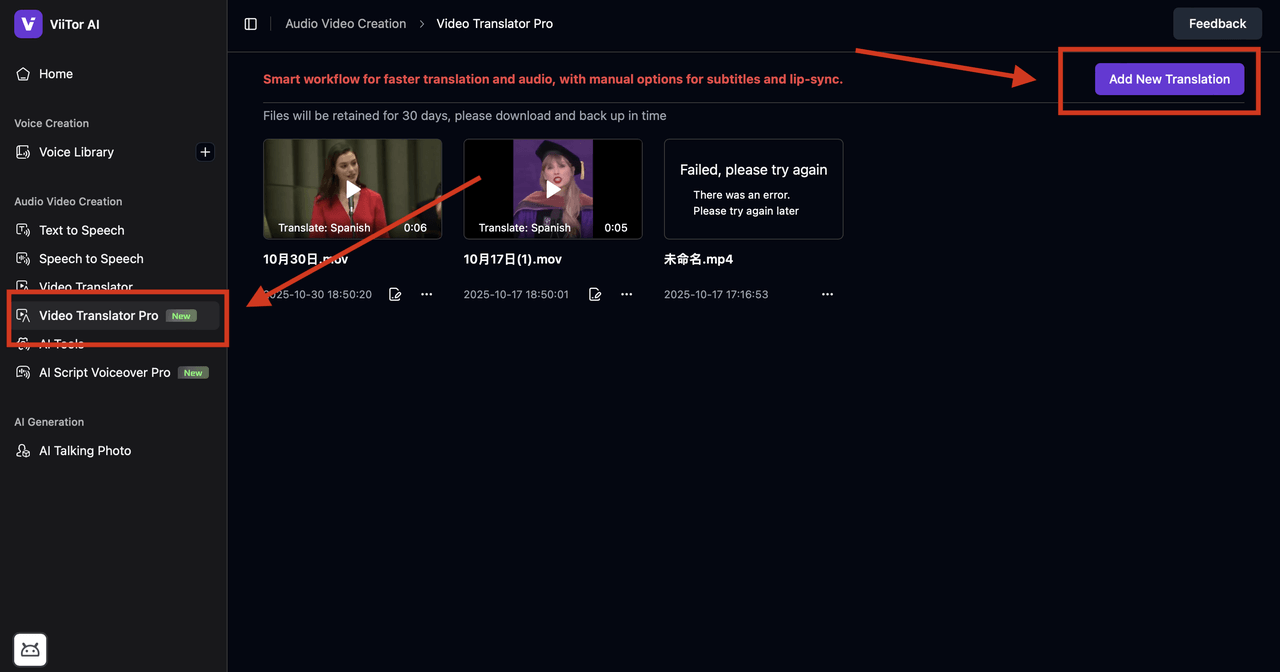
- Upload Your Video
- Log in to your ViiTor AI account (or create a new one).
- Upload your video file directly from your device.
- The platform supports various video file formats.
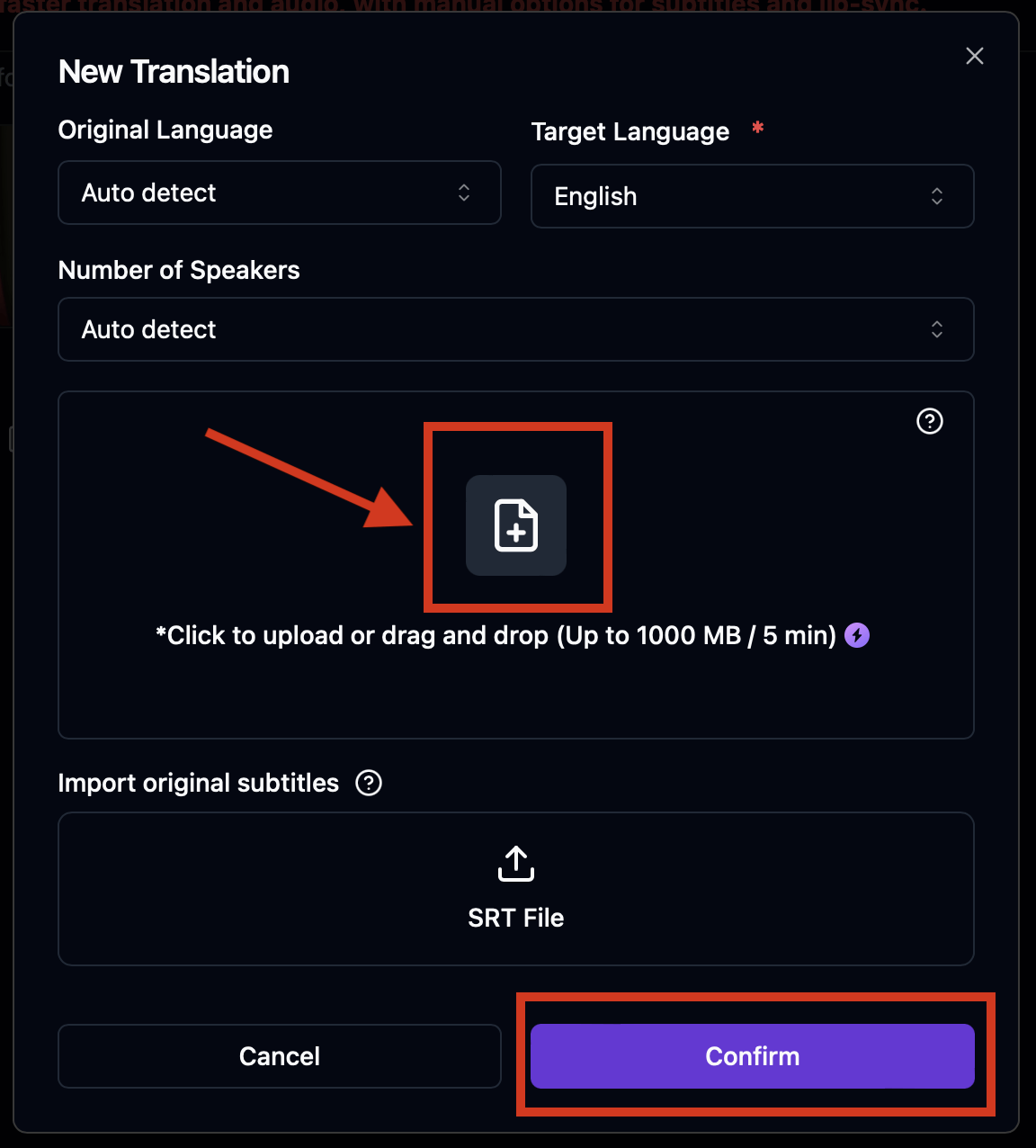
- Select Source And Target Languages
- Choose the original language of your video (source) and the language you want it translated into (target).
- ViiTor AI supports 19 languages, including English, Spanish, and French, offering flexibility to reach a global audience.
- Initiate Translation
- Click the "Confirm" button to begin the process.
- ViiTor AI will transcribe the audio, translate it into the target language, and generate a dubbed version.
- The translated audio will be synced with your video for a natural viewing experience.
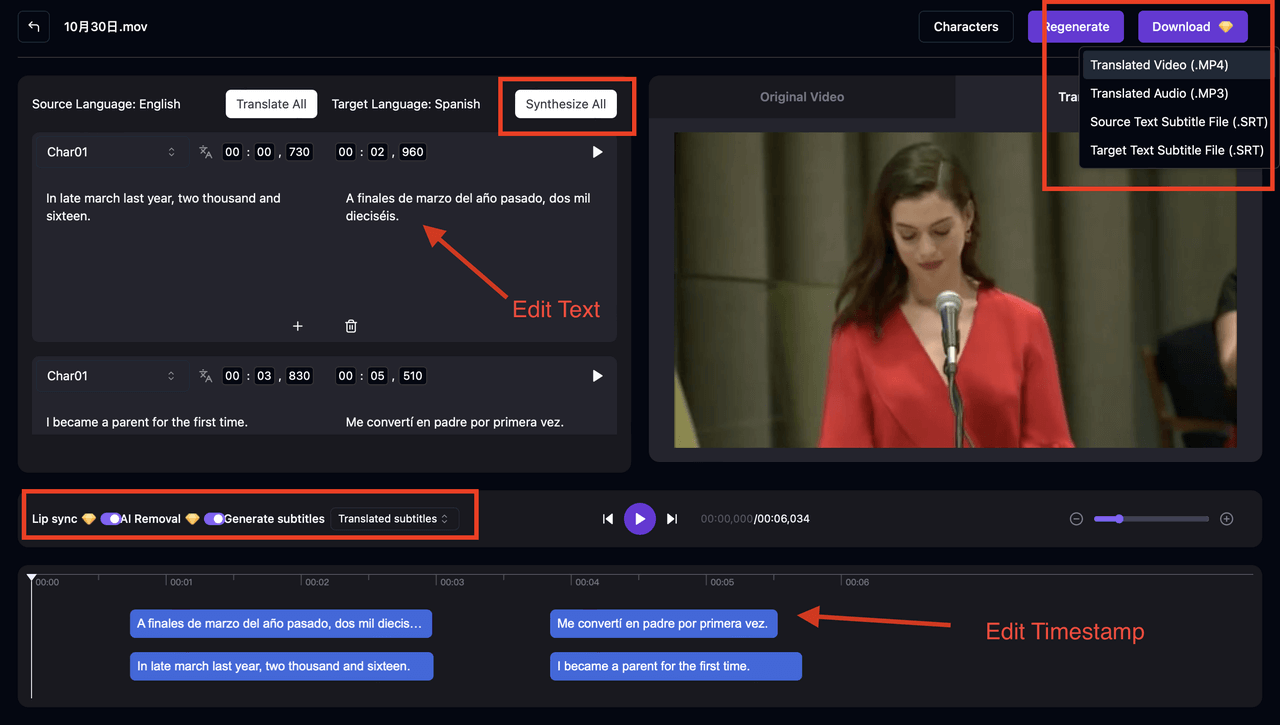
- Review and Finalize
- Use the built-in editor to review the translation. You can make text adjustments to ensure the message is perfect. Use the 'redub' function to apply changes to the audio.
- Download Translated Video
- Once satisfied with the result, download the final translated video or subtitle files directly from the platform.
Benefits Of AI Video Translators
- AI Voice Dubbing: These tools go beyond text, generating voiceovers in different languages, allowing your video to speak directly to viewers in their native tongue.
- Automatic Lip-Syncing: Advanced AI, like that in ViiTor AI, can match the translated audio to the speaker's lip movements as much as possible, creating a more realistic and engaging video.
- Natural-Sounding Voice Cloning: AI can replicate the tone and characteristics of the original speaker's voice, making the dubbed experience feel more authentic and personal.
- Higher Accuracy: AI translators are generally better at handling idioms, cultural nuances, and technical jargon than generic tools like Google Translate, resulting in more accurate and context-aware translations.
Final Thoughts
Translating your YouTube videos is a powerful strategy for reaching a global audience. You can use Google Translate alongside YouTube's built-in tools to create multilingual subtitles, either manually or automatically. However, for superior results involving accurate translated subtitles or full video dubbing, AI video translators like ViiTor AI present a more efficient and advanced solution for video localization.
FAQs About Translating YouTube Videos
- Can I directly upload a YouTube video to Google Translate?
No, Google Translate only processes text. You must first extract the video transcript and then paste that text into Google Translate.
- How accurate is YouTube’s automatic translation?
Its accuracy depends heavily on the quality of the original captions. It often struggles with slang, idioms, and cultural context, so manual review is strongly advised.
- Can YouTube translate a video’s audio directly?
No, YouTube only translates subtitle text. For direct audio translation or dubbing, you need to use third-party AI tools like ViiTor AI.
- What is the best tool for translating YouTube videos without existing subtitles?
AI video translators like ViiTor AI are the best choice, as they can handle the entire process from transcription and translation to dubbing, even for videos without captions.
- Is it free to use AI video translators?
Some platforms may offer free trials with basic features. However, for advanced capabilities like high-quality dubbing and voice cloning, a paid subscription or credit-based payment is typically required.